Google Shopping Product Feed for Shopify: Setup, Optimization, and Maintenance
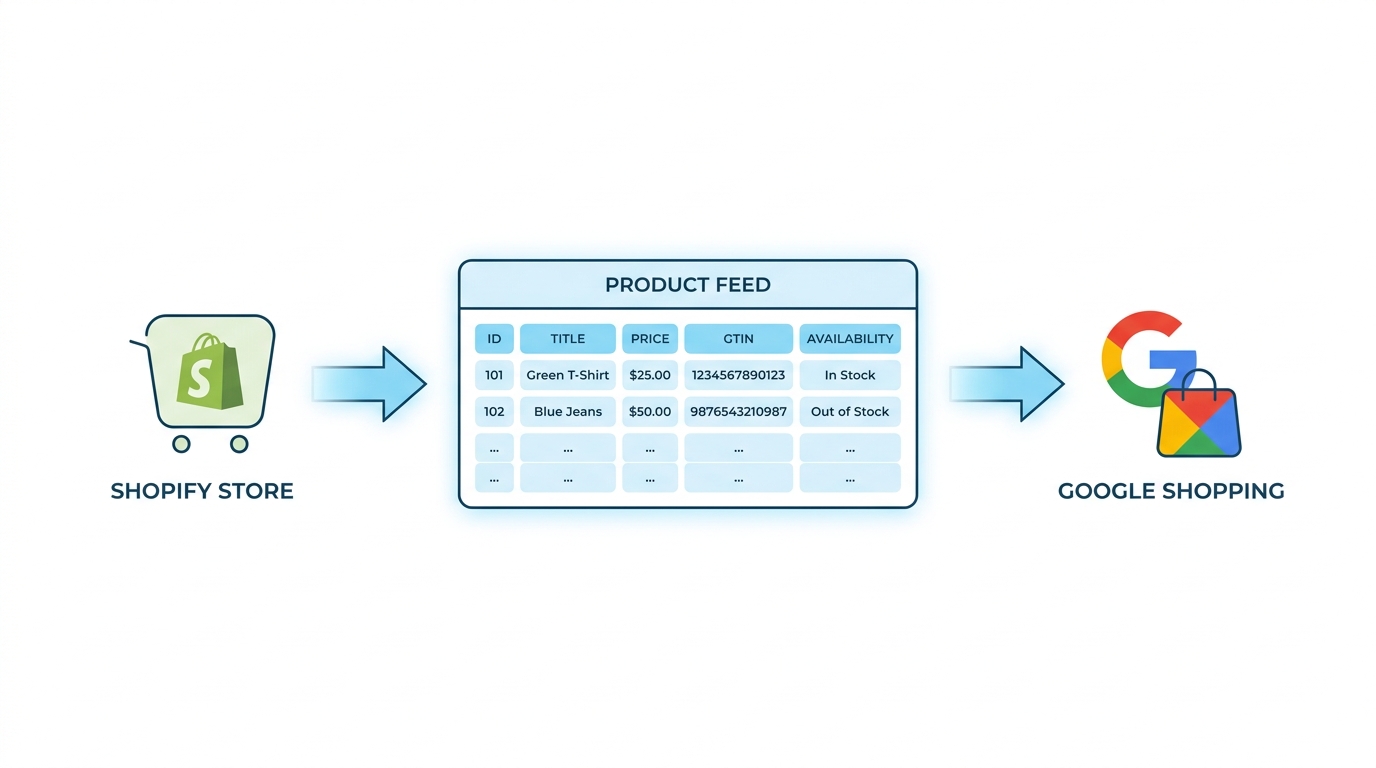
Your Google Shopping product feed is the most important file in your paid search stack. Not your bidding strategy. Not your audience signals. The feed. It’s the structured data file that tells Google what you sell, how to categorize every SKU, and which auctions you’re eligible to enter. When the feed is wrong, your campaigns spend budget in the wrong auctions — or don’t serve at all.
The problem is that most Shopify merchants configure their google shopping product feed once, during initial setup, and then leave it. The feed runs in the background while the team optimizes bids and creative. Errors accumulate. Products drift out of spec. And the performance degradation is invisible until someone goes looking for it.
This guide is the technical deep-dive that setup checklist articles don’t cover. It’s for Shopify merchants and agency operators who want to understand the spec, not just follow the steps — because understanding why each field matters is what lets you diagnose problems when performance drops and optimize when it plateaus.
What Google Shopping Actually Needs From Your Feed
Google Merchant Center operates on a formal product data specification with required attributes, supported values, and formatting rules documented at support.google.com/merchants/answer/7052112. When your feed doesn’t conform, products get disapproved, limited, or misrouted into the wrong auction pools.
The challenge for Shopify merchants is a translation problem. Shopify stores product data in its own schema — optimized for storefront display, not programmatic advertising. Shopify’s native model doesn’t map cleanly to GMC’s requirements. Some attributes don’t exist in Shopify at all: there’s no native condition field, no google_product_category, no distinction between a real GS1-registered GTIN and an internal barcode. Others exist but need transformation before they’re usable — descriptions are HTML, prices lack currency codes, variant data is nested differently than GMC expects.
Every Shopify merchant running Google Shopping is running a translation layer between store data and Google’s spec, whether they know it or not. The quality of that translation is what separates a feed that drives results from one that spends budget poorly.
Required, Conditionally Required, and Optional — What Actually Matters
Google’s spec labels attributes as Required, Conditionally Required, and Optional. But those labels are deceptive.
Required for any product to serve: id, title, description, link, image_link, price, availability, condition
Conditionally required attributes become mandatory for certain product categories. gtin is required for products where a manufacturer GTIN exists (most branded goods). color, size, gender, and age_group are required for apparel. item_group_id is required any time you submit product variants.
“Optional” attributes that materially affect performance: google_product_category, product_type, brand, additional_image_link, sale_price, shipping. Google uses these for auction matching, quality scoring, and policy enforcement. Leaving them out won’t cause immediate disapprovals, but they leave measurable performance on the table.
The Shopify → GMC Attribute Map
Here’s the field-by-field translation. Understanding this mapping is the foundation of everything else in feed management.
| GMC Attribute | Shopify Source | Notes |
|---|---|---|
id | Variant ID (or Product ID for single-variant) | Use variant ID; max 50 chars; must be stable |
title | Product title | Needs optimization — not a 1:1 pass-through |
description | Product body_html | Must strip HTML; max 5,000 chars |
link | Product URL + ?variant={variant_id} | Variants need the query parameter |
image_link | Variant image, or featured image fallback | Must be absolute Shopify CDN URL |
price | Variant price | Format: 19.99 USD (value + space + ISO 4217 currency code) |
availability | Inventory policy + quantity | Maps to: in_stock, out_of_stock, preorder, backorder |
condition | No Shopify native field | Set statically to new for most merchants |
gtin | Barcode field | Only if it’s a real UPC/EAN/ISBN — not internal SKU |
brand | Vendor | |
google_product_category | No Shopify native field | Must be set via feed rules or app configuration |
product_type | Product type (Shopify field) | Merchant-defined; not the same as google_product_category |
item_group_id | Parent product ID | Required when submitting variants |
color | ”Color” option value | Required for apparel category |
size | ”Size” option value | Required for apparel category |
additional_image_link | Other product images | Up to 10 additional images per product |
Several of these deserve more than a table cell.
The id field and why stability matters: Google requires id values to remain stable across feed updates. If you change a product’s id, Google treats it as an entirely new product — bidding history, quality score signals, and performance data all reset. Use Shopify’s variant ID as the stable anchor. It doesn’t change when you rename the product, reorder variants, or update the description.
The link field for variants: When a product has multiple variants, each variant’s link must deep-link to the correct variant on your product page using Shopify’s variant parameter: https://yourstore.com/products/your-product?variant=12345678901. Without that parameter, the page defaults to whichever variant Shopify shows first. If that default variant has a different price than what’s in the feed, GMC’s price crawler will flag a mismatch — and the product gets disapproved.
The availability field and Shopify’s inventory model: Shopify tracks inventory through three layers: inventory_management (whether inventory is tracked at all), inventory_quantity, and inventory_policy (whether to continue selling when out of stock). The correct GMC mapping:
- Tracked, quantity > 0 →
in_stock - Tracked, quantity ≤ 0, policy = “deny” →
out_of_stock - Not tracked OR policy = “continue” →
in_stock(with caveats) - Preorder →
preorder
Mapping this incorrectly is expensive. Products marked in_stock when they’re actually unavailable generate clicks that don’t convert and trigger GMC availability mismatch disapprovals.
The 5 Fields That Drive 80% of Performance
Not all attributes carry equal weight. These five have outsized influence on whether your products enter the right auctions, win impressions, and convert clicks into revenue.
1. Title [title] — The Primary Auction Matching Signal
The title attribute is the heaviest text signal Google uses for Shopping auction matching. Unlike Search, Shopping doesn’t use keyword bids — there are no keyword lists to manage. Instead, Google reads your product attributes and infers which shopping queries your products are relevant for. Your title is the dominant signal in that inference.
The spec allows up to 150 characters. In practice, Google displays roughly 70-80 characters in the ad unit and truncates the rest. But the full title is used for matching even when truncated from display, so front-load the most important terms.
Shopify’s default failure mode: Shopify titles are written for storefront browsing, not search intent. A merchant might name a product “The Classic Tee” — evocative, on-brand, completely useless for Shopping auction matching. Google doesn’t know what queries “The Classic Tee” should compete for.
What works instead — a category-specific title formula:
For apparel: {Brand} {Gender}'s {Product Name} {Material} {Color}
→ “Everlane Men’s Organic Cotton Crew Neck T-Shirt Black”
For electronics: {Brand} {Model} {Key Spec} {Form Factor}
→ “Anker 65W USB-C GaN Charger Compact Wall Adapter”
For tools/hardware: {Brand} {Product Type} {Spec} {Model}
→ “DEWALT 20V MAX Cordless Drill Driver DCD777C2”
For home goods: {Brand} {Product Type} {Material} {Dimension/Capacity}
→ “Calphalon Classic 10-Piece Stainless Steel Cookware Set”
The pattern is consistent: brand, specific product type, key differentiating attribute, variant info where search intent demands it. This is the structure Google Shopping experts present at developer-facing events and what internal Google recommendations consistently point toward.
Note on title rules: If your Shopify product titles aren’t search-optimized, feed rules can transform them at export time without touching your storefront. A title template like {vendor} {title} - {color} produces better auction-matching titles than raw Shopify data, applied automatically at every feed export.
2. Description [description] — Context and Secondary Matching
The description attribute is plain text, max 5,000 characters. It’s a secondary matching signal — less influential than title, but Google uses it for understanding product context, particularly on edge-case or long-tail queries.
Shopify’s default failure mode: Shopify descriptions are stored as body_html. They contain HTML markup, inline styles, bullet point tags, and typically marketing copy written for storefront conversion — not product attribute description.
A raw Shopify description pushed to GMC unprocessed might look like: <p style="margin:0">Our most beloved tee, crafted with love in downtown Los Angeles.</p><ul><li>Soft cotton blend</li></ul>
What GMC receives: a product that is “beloved and crafted with love.” Unhelpful for auction matching.
What works: Strip the HTML programmatically. Then structure the first 500 characters around functional product attributes — material, dimensions, use case, compatibility. Google’s processing of Shopping descriptions is front-weighted; the first paragraph carries the most matching weight.
A well-constructed description opener: “100% organic cotton crew neck t-shirt for men. Pre-shrunk, 180gsm fabric weight. Available in sizes XS-XXL. Machine washable. True to size.”
That’s 17 words of functional description that tell Google exactly what this product is and who it’s for.
3. Google Product Category [google_product_category] — Auction Eligibility and Policy Enforcement
This is where many Shopify merchants make their most consequential mistake, and where the consequences are most invisible.
google_product_category uses Google’s product taxonomy — a hierarchical classification system with over 6,000 categories. The full taxonomy with numeric IDs is published at google.com/basepages/producttype/taxonomy-with-ids.en-US.txt.
You can submit this attribute as a numeric ID or a text path:
- Numeric:
2271 - Text path:
Apparel & Accessories > Clothing > Shirts & Tops
Google strongly recommends numeric IDs. Text paths can be misinterpreted if the taxonomy hierarchy changes; numeric IDs are stable identifiers that survive taxonomy restructuring.
Why category matters beyond classification: Google uses google_product_category for two distinct purposes:
1. Auction pool assignment. Products compete for impressions in category-specific auction pools. If your t-shirt is miscategorized as Home & Garden > Seasonal & Holiday Decorations, it enters the wrong auction and competes (badly) against irrelevant products. More importantly, it misses the auctions where it should be competing — the apparel pools where buyers are searching for exactly what you sell.
2. Conditional attribute enforcement. Certain categories trigger additional required attributes. Products in the Apparel & Accessories subtree require color, size, gender, and age_group. Without those attributes on an apparel product, Google limits or disapproves it. Getting the category right doesn’t just affect where your ads show — it tells you exactly which additional attributes you need to provide.
A critical distinction Shopify merchants frequently miss: Shopify’s product_type field and GMC’s google_product_category are completely different attributes. Shopify’s product type is merchant-defined free text — “Shirts,” “Blue Shirts,” “Men’s Clothing.” It maps to GMC’s product_type attribute, which is useful for Shopping campaign segmentation and reporting, but has no effect on auction eligibility or policy validation. Never use Shopify’s product type as a proxy for google_product_category.
4. GTIN [gtin] — Product Identity and Enhanced Auction Eligibility
The gtin attribute accepts globally unique product identifiers in four formats:
- UPC: 12 digits (North America standard)
- EAN: 13 digits (European and international standard)
- ISBN: 13 digits (books and media)
- ITF-14: 14 digits (trade unit/case packaging)
GTINs are assigned by GS1 — the international standards organization — to specific products. A GTIN is not just a number format; it encodes a company prefix, an item reference, and a check digit. Google cross-references submitted GTINs against the GS1 database. If you submit a GTIN that doesn’t correspond to a real registered product — including zeros (000000000000), repeated digits, or internal SKU codes that happen to be 12 digits long — Google will detect it and flag the product.
Why GTIN validity matters beyond avoiding disapprovals: Products with verified GTINs unlock additional Shopping features, including eligibility for Shopping annotations like seller ratings and price comparisons across merchants selling the same item. If you’re selling branded goods that have manufacturer GTINs, submitting them correctly improves auction competitiveness.
Shopify’s barcode field is not reliably a GTIN. Many merchants use Shopify’s barcode field for internal stock codes, supplier references, or warehouse identifiers that happen to be numeric. Before mapping the barcode field to gtin, validate that the value is a real GS1-registered GTIN — format alone (12-13 digits) is not sufficient. A 12-digit number that isn’t a registered UPC will pass format validation and fail GS1 validation.
The identifier_exists attribute: For products that genuinely don’t have a GTIN — handmade goods, custom products, vintage items, private label without GS1 registration — set identifier_exists to FALSE. This signals intentional omission, which is treated differently from an oversight. An empty gtin with no identifier_exists flag tells Google you forgot; identifier_exists: FALSE tells Google you know the product doesn’t have one.
5. Image [image_link] — The Click-Through Signal
Shopping is a visual format. Every Shopping ad is dominated by its image. The image_link attribute points to your primary product image, and that image must meet Google’s quality standards — or the product gets disapproved before it ever serves.
Google’s image spec:
- Non-apparel minimum: 100×100px
- Apparel minimum: 250×250px
- Recommended: 800×800px or larger (Shopping ads display at up to 300px; higher resolution improves quality at display size)
- Maximum: 64 megapixels
- Max file size: 16MB per image
- Supported formats: JPEG, PNG, WebP, GIF (non-animated), TIFF, BMP
What gets rejected:
- Promotional text or watermarks overlaid on the product image
- Placeholder images (“coming soon,” gray boxes, stock art)
- Lifestyle images where the product is secondary or not clearly visible
- Images with excessive borders, colored backgrounds with texture, or promotional overlays
- Images that don’t match the described product (wrong color variant, different product entirely)
Shopify’s image challenge: Shopify serves images from its CDN at URLs like https://cdn.shopify.com/s/files/1/xxxx/xxxx/products/image.jpg. These URLs are valid for GMC — no issue there. The challenge is variant-specific images.
When a t-shirt comes in five colors and each color has its own image in Shopify, your feed should use the variant-specific image URL for each variant record, not the default product image. If the blue variant’s image_link points to the product’s default red image, GMC’s image policy flags the mismatch during crawl — and the blue variant gets limited visibility or disapproval.
The additional_image_link attribute accepts up to 10 additional product images per SKU. For products where multiple angles or detail shots improve buyer confidence, submitting them via additional_image_link can improve click-through rate. The same quality rules apply to additional images.
Feed Rules for Shopify Merchants
Feed rules are the logic layer between your raw Shopify data and what Google receives. They’re what separates a passive feed that exports whatever Shopify contains from an actively managed feed that enforces quality at export time.
Title Templates
A title template applies string transformation to your Shopify data at export. Instead of passing Shopify’s raw title directly, a template constructs an optimized title from multiple Shopify fields:
{vendor} {title} - {color}Applied to a product from vendor “Everlane,” title “Classic Tee,” color option “Black,” this produces: “Everlane Classic Tee - Black.”
More sophisticated templates use conditional logic:
IF {product_type} contains "Apparel"
  THEN {vendor} {gender_metafield} {title} {material_metafield} {color}
ELSE {vendor} {title} {variant_title}
This is where feed management tools do real work. The transformations themselves aren’t complex — applying them reliably across hundreds or thousands of SKUs, on every feed export, is the hard part.
Variant Handling at Scale
Every Shopify product variant becomes its own line item in your GMC feed. A t-shirt with 5 colors × 4 sizes generates 20 records. Each record needs:
- A unique
id(the Shopify variant ID) - The variant-specific
price(variant prices can and often do differ) - The variant-specific
image_link(if Shopify has variant images assigned) - The correct
colorandsizevalues from Shopify’s option values - The same
item_group_id(the parent product ID) shared across all 20 variants
The item_group_id is the field that makes variants work as variants, not as 20 unrelated products. Google uses it to group variants in the Shopping UI — when a buyer clicks a color swatch in a Shopping result, that swatch navigation is powered by item_group_id. Without it, Google treats each variant as a standalone product: no swatch display, no variant grouping, and your catalog looks 20x larger and less organized than it actually is.
Metafield Mapping for Advanced Attribute Coverage
Shopify metafields are the bridge for GMC attributes that don’t exist in Shopify’s native product model. The most common mappings:
| GMC Attribute | Common Shopify Metafield |
|---|---|
gtin | custom.gtin or descriptors.gtin |
mpn | custom.mpn |
material | custom.material |
gender | custom.gender |
age_group | custom.age_group |
energy_efficiency_class | custom.energy_rating |
multipack | custom.multipack_quantity |
To use metafields in feed exports, your feed tool needs to query Shopify’s metafield API per-product during the feed build process. The metafield namespace and key must be known at configuration time.
If you’re using Shopify’s metafield definitions system (introduced with Shopify 2.0), metafields are typed and validated at the Shopify level. A gtin metafield defined as an integer type won’t accidentally contain a string value — which means downstream feed quality improves because the data is structurally enforced at the source.
Multi-Channel Feeds: One Catalog, Three Platforms
Most Shopify merchants running paid advertising aren’t running only Google Shopping. They’re running Google, Microsoft Ads, and Meta simultaneously. Managing separate feed configurations for each creates an error-prone, labor-intensive system where Shopify data changes propagate inconsistently and feed issues require debugging three different dashboards.
The better architecture: one canonical product catalog with platform-specific transformations applied at export time.
How the Platforms Diverge
All three major shopping channels share a similar core schema — id, title, description, link, image_link, price, availability. The divergences are in the details:
Google Merchant Center:
google_product_category: Google’s taxonomy, numeric IDs preferred (e.g.,2271)availabilityvalues:in_stock,out_of_stock,preorder,backorder(underscores)- Price format:
19.99 USD(value + space + ISO 4217 currency code) - Feed formats: XML (RSS 2.0 with
g:namespace), Atom 1.0, or tab-separated text
Microsoft Ads (Bing Shopping):
- Accepts Google’s
google_product_categorytaxonomy directly — one of the few compatibility wins across platforms - Core attribute names and formats are largely identical to Google
BingAds_SKIPprefix for Google-specific attributes that don’t apply
Meta Catalog (Facebook/Instagram Shopping):
availabilityvalues:in stock,out of stock(spaces, not underscores) — this is the most common cross-channel breakage pointrich_text_description: Accepts HTML-formatted descriptions (separate from the plain-textdescriptionfield)fb_product_category: Meta’s own taxonomy (separate fromgoogle_product_category; both can coexist)sale_price_effective_date: Same ISO 8601 interval format as Google
The availability formatting difference between Google and Meta breaks more multi-channel feeds than any other single issue. Google requires in_stock; Meta requires in stock. One file can’t satisfy both — you need per-platform exports.
Monitoring and Maintenance: Keeping the Feed Healthy Over Time
A feed is not a “set and forget” asset. Google’s requirements evolve. Your catalog changes. Prices update. Inventory fluctuates. All of it requires active monitoring.
Reading GMC Diagnostics
The Diagnostics tab in Google Merchant Center is the authoritative view of your feed’s health. Issues are categorized by severity:
- Errors (disapprovals): Products with errors don’t serve. These require immediate attention.
- Warnings (limited visibility): Products serve, but at reduced impression eligibility.
- Notifications (informational): No immediate performance impact, but worth tracking.
The most common errors in Shopify merchant feeds:
Price mismatch: GMC crawls your product landing pages and compares the displayed price to the price in your feed. If they differ by more than a tolerance threshold, the product is disapproved. This typically happens when Shopify price changes aren’t reflected in the next feed export cycle, or when variant link URLs don’t include the variant parameter so the crawl lands on a different-priced variant.
Missing required attribute: Most commonly triggered when an apparel product is categorized under Apparel & Accessories but is missing color, size, gender, or age_group. The fix is either providing those attributes or correcting the category if the product was miscategorized.
Invalid GTIN: Submitted GTINs that fail GS1 registry validation. Fix: supply a valid manufacturer GTIN or set identifier_exists: FALSE.
Image quality issues: Promotional text overlays, placeholders, or images that don’t match the product. Often introduced when product images are updated in Shopify but the feed caches the old URL.
Price Sync Architecture and Lag
Three sources of truth must stay synchronized: Shopify (master record), your feed export, and GMC (what Google knows). When a Shopify price changes, the change doesn’t immediately reach GMC — it propagates through two steps with lag at each.
For time-sensitive promotions, the correct approach is the sale_price and sale_price_effective_date attributes submitted in advance:
sale_price: 14.99 USD
sale_price_effective_date: 2024-12-20T00:00:00-05:00/2024-12-26T23:59:59-05:00
The sale_price_effective_date field uses ISO 8601 interval format: {start_datetime}/{end_datetime}, each in RFC 3339 format with timezone offset. Submit sale pricing at least 24 hours in advance — GMC’s feed processing and crawl validation introduce up to a day of lag.
For stores with high-frequency price changes — rotating sales, dynamic pricing, daily flash deals — daily feed sync is insufficient. Google allows feed fetches up to 6 times per day (roughly every 4 hours). Increasing sync frequency is the highest-leverage technical change for reducing price mismatch disapprovals.
What to Track After Launch
Feed health is a metric, not a binary state. Track it systematically:
Item coverage rate: What percentage of your eligible catalog is actually serving? If you have 500 products and 40 are disapproved, you’re operating at 92% coverage. Healthy feeds maintain 97%+. Below 95% warrants investigation.
Disapproval rate by issue type: Track which error categories are causing disapprovals and whether the trend is improving or worsening. A spike in price mismatch disapprovals signals a sync cadence problem. A spike in image quality issues signals a Shopify image management problem. The issue type tells you where to look.
GMC item status transitions: Watch for products moving from approved → limited → disapproved. The transition to “limited” typically precedes full disapproval and is easier to remediate at that stage.
Impression share by category: Low impression share in categories where you have strong, competitive products often indicates a categorization or title issue, not a bidding issue. This is the diagnostic that catches feed problems invisible from the campaign dashboard — and it’s why checking the feed should be the first step when Shopping performance softens, not the last.
Managing All of This in Practice
Managing everything in this guide manually — the attribute mapping, title templates, variant handling, metafield reads, multi-channel transformations, sync scheduling, and ongoing diagnostics — is the feed management problem in full. Every piece represents a decision that has to be made and a configuration that has to be maintained as your catalog evolves.
Simple Product Feeds handles the translation layer between Shopify and GMC natively. It reads Shopify’s product API — variants, metafields, images, inventory — applies your feed rules, and exports a GMC-compliant feed on your schedule. The free plan covers up to 50 SKUs with Custom Rules, Filter Rules, and Metafield mapping included — the same capabilities you’d pay enterprise pricing for in solutions like Feedonomics, available before you’ve made a single sale from the feed.
Paid plans start at $9.99/month for growing catalogs. At the scale where feed errors start costing real money, that’s a rounding error relative to the wasted ad spend a misconfigured feed generates.
Before your first GMC submission, validate your feed attribute-by-attribute using the process in our feed testing guide. For the broader context on why feed management is an ongoing program rather than a one-time setup task, the product feed management guide covers the governance model. And if you’re optimizing an existing feed for better performance, product feed optimization covers the incremental improvements that move the needle after initial setup.
Ready to simplify your product feeds?
Simple Product Feeds connects your Shopify store to Google Shopping, Meta, and more — in minutes.
Install Simple Product FeedsFrequently Asked Questions
- What's the difference between product_type and google_product_category?
- They're separate attributes with different purposes. `product_type` is merchant-defined free text used for campaign segmentation in Google Ads. `google_product_category` is Google's official taxonomy — a numeric ID from Google's 6,000+ category list that determines auction eligibility, policy enforcement, and which additional attributes are required. Never use Shopify's product type as a proxy for google_product_category.
- Do I need a GTIN for every product?
- Only if your products have GTINs assigned by the manufacturer (most branded goods do). If a product genuinely doesn't have a GTIN — handmade items, custom products, private-label goods without GS1 registration — set identifier_exists to FALSE rather than leaving gtin empty or submitting a placeholder. Google validates GTINs against the GS1 registry, so fake or placeholder GTINs trigger disapprovals.
- How often should my feed sync to Google Merchant Center?
- At minimum, daily. For stores with frequent price changes or inventory fluctuations, configure 4-hour syncs — Google allows feed fetches up to 6 times per day. Price mismatch disapprovals are often caused by sync lag, not data errors. For sale pricing, submit sale_price and sale_price_effective_date at least 24 hours in advance to account for GMC's feed processing lag.
- Why are some of my Shopify products getting disapproved for price mismatch?
- Google Merchant Center crawls your product landing pages and compares the displayed price to your feed price. Common causes: (1) Shopify price updated but feed hasn't synced yet; (2) variant feed URLs don't include the ?variant=id parameter, so the crawler lands on a different-priced variant; (3) price formatting issues in the feed. Fix: add variant parameters to all product URLs and increase sync frequency.
- Can I use the same product feed for Google, Microsoft Ads, and Meta?
- You can use the same underlying catalog data, but you need platform-specific exports. The key difference: Meta requires 'in stock'/'out of stock' (with spaces) while Google requires 'in_stock'/'out_of_stock' (underscores). Meta also has its own fb_product_category, and accepts rich_text_description for HTML content. One catalog with per-channel transformation rules is the right architecture — not separate manually maintained feeds.
- What item_group_id should I use for Shopify product variants?
- Use the parent Shopify product ID as the item_group_id for all variants of that product. Each individual variant gets its own unique id (the variant ID), but all variants share the same item_group_id. Google uses this grouping to display color swatches in Shopping results and to recognize that the records are variants of one product rather than separate items.
Related Articles
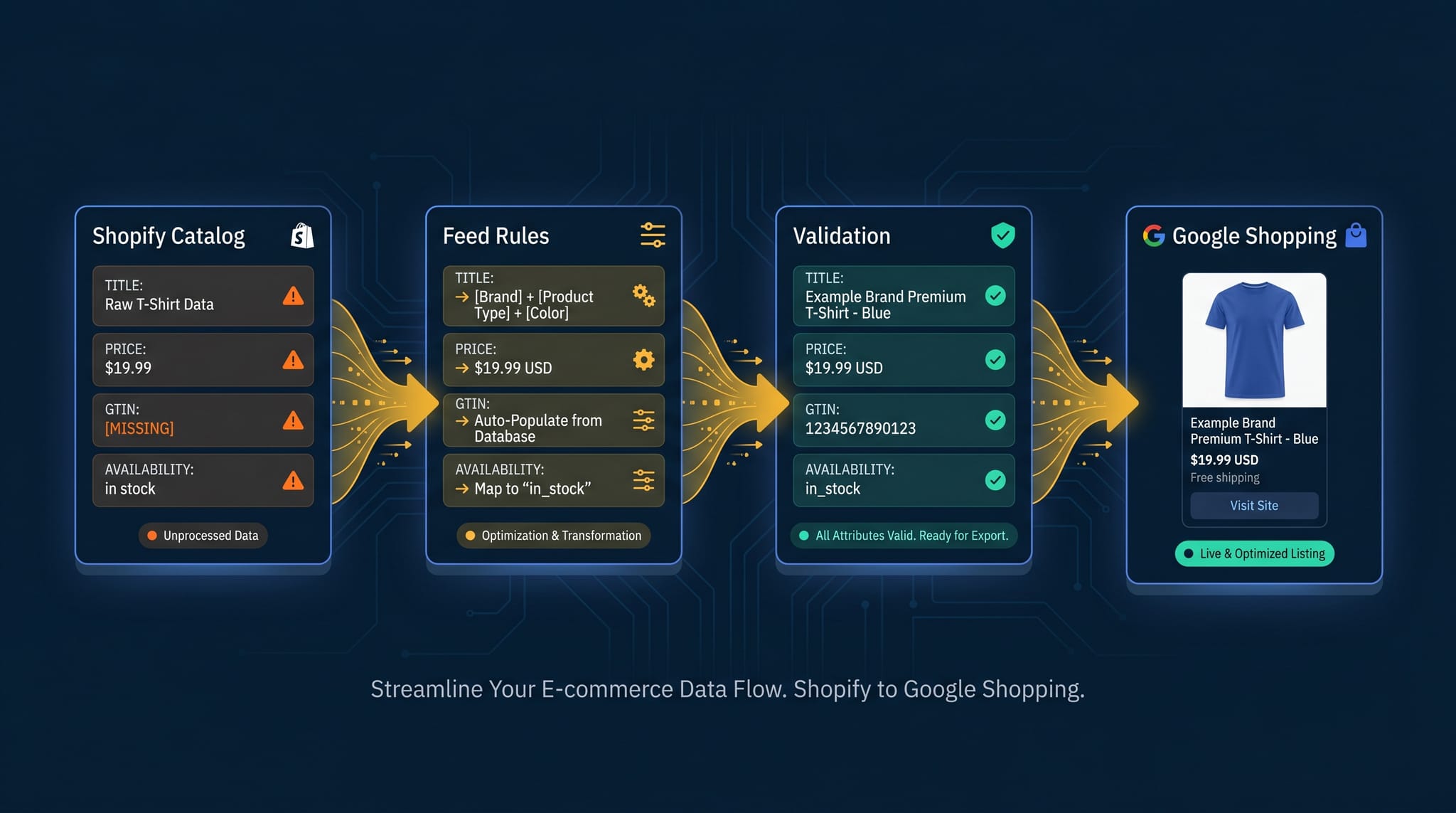
The Complete Guide to Product Feed Management for Shopify
Product feed management is more than syncing your catalog. Here's the complete guide to how it works, what breaks, and how Shopify merchants do it right.
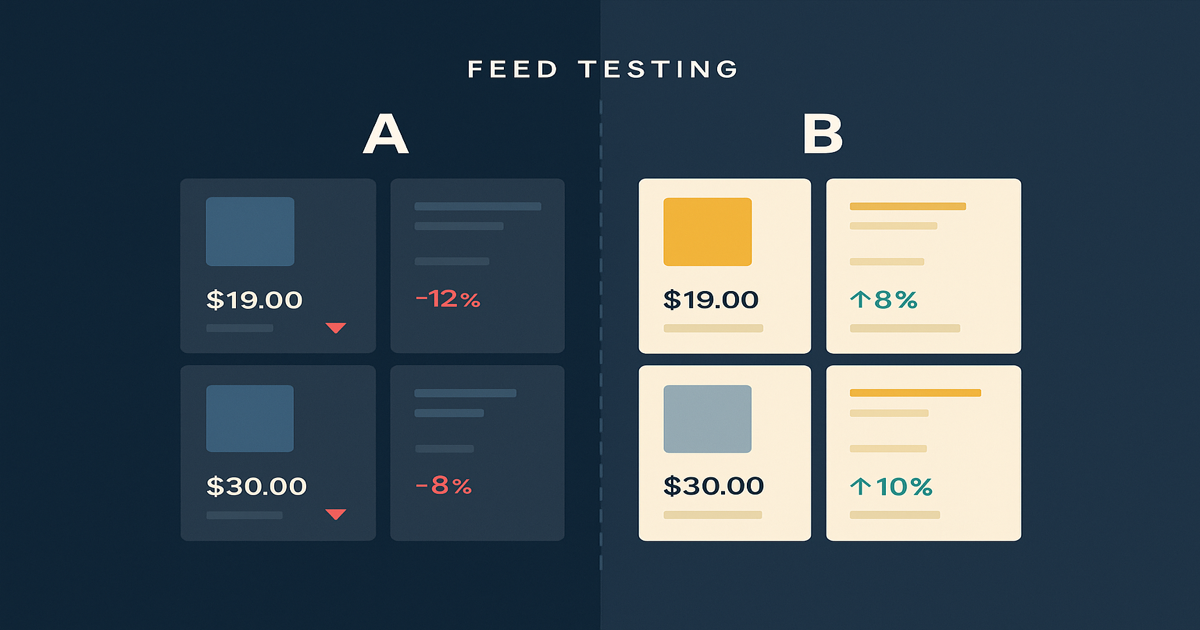
Your Shopify Product Feed Is a Testing Platform — Here's How to Use It
Most merchants treat their feed as a sync task. Here's how google shopping feed optimization with feed rules generates real marketing signal — and what to do with it.
How to Optimize Your Shopify Product Feed (Complete Guide)
Optimize your Shopify product feed for Google Shopping with this step-by-step guide. Fix titles, categories, GTINs, and feed rules to get more impressions and clicks.